

Announcing Windows 11 Insider Preview Build 22579
Hello Windows Insiders, today we are releasing Windows 11 Insider Preview Build 22579 to the Dev Channel.
TL;DR
- The Bug Bash has begun! Help us continue to shape Windows by participating in our Bug Bash from March 16th to March 22nd. Explore new features, apps, and experiences that we have released in these latest builds and share feedback! You can check the Quests section of the Feedback Hub to get ideas of what to try out. Participating Insiders on this build will receive a Bug Bash badge in the Feedback Hub.
- We are releasing ISOs for this build – they can be downloaded here!
- This build introduces a new policy for IT administrators to exclude USB removable drives from BitLocker encryption.
- We are also introducing a good set of changes and improvements including the ability to name your folders on Start, site suggestions in the Get Started app that you can pin to your taskbar, and more!
- We have some updates for the Media Player and Your Phone apps – details below.
- Join us for the March Windows Insider Webcast! Tune in at 10am PDT/5pm UTC on March 22nd as we host guests from the team responsible for the new focus experiences introduced in Build 22557. We’ll also talk about the current Bug Bash, including Quests, recent builds, and more!
What’s new in Build 22579
Exclude USB removable drives from encryption
We are introducing a new policy so that IT administrators can exclude USB removable drives from BitLocker encryption. This will solve the problem of automatic or accidental encryption of storage built into specialized devices like video cameras, voice recorders, conferencing systems, medical devices and many more. When this policy is enabled, you will not be able to encrypt storage that is on the exclusion list, and you will not be prompted for encryption if you connect such storage to a device while “Deny write access to removable drives not protected by BitLocker” policy is enabled on it. This policy so far can only be configured via MDM custom OMA-URI.
Here are the steps an IT administrator can take to exclude storage from encryption:
STEP 1: Gather Hardware IDs of devices you want to exclude. You can follow the steps to get hardware IDs of devices outlined here in this Docs page.
STEP 2: Configure BitLocker Exclusion list Policy in Intune:
- Login to Endpoint Manager portal.
- Go To Devices > Configuration Profiles.
- Click “Create Profile“.
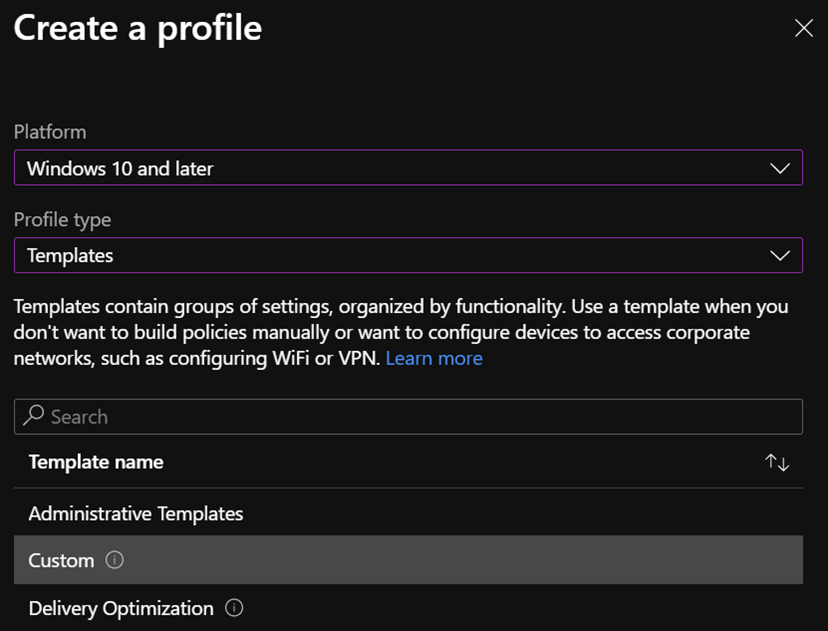
- Select Platform “Windows 10 and later” and Profile type: “Templates” then select Template Name: “Custom”.
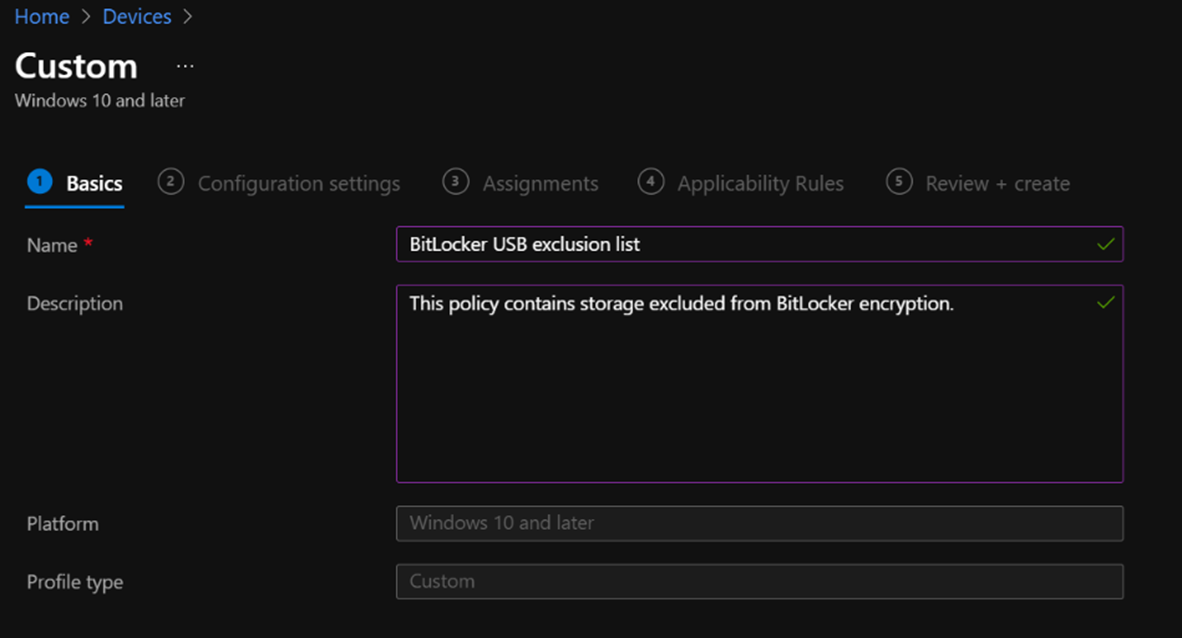
- On a Basics tab, name your policy and put any description.
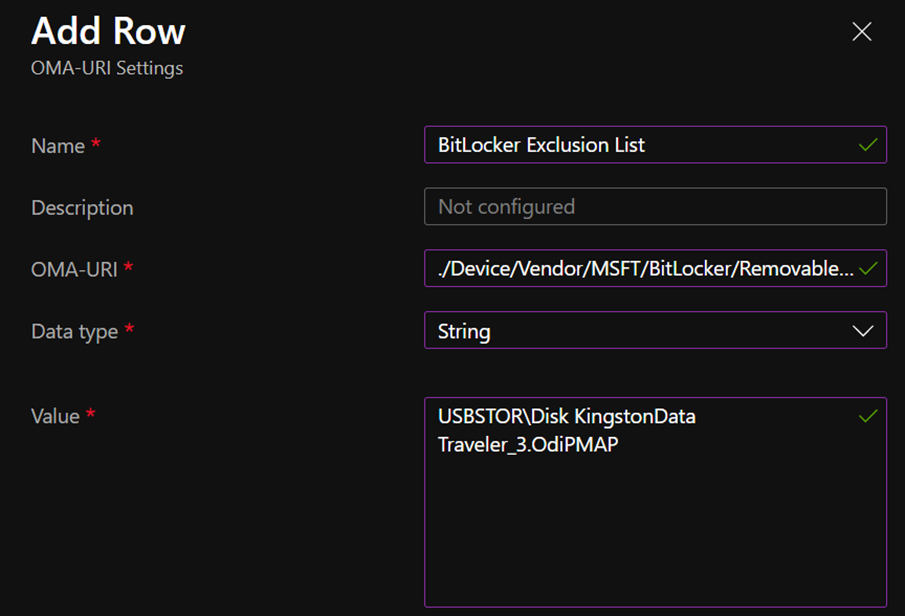
- On a Configuration settings tab click Add and:
- Enter your name and description of the setting.
- Oma-URI: ./Device/Vendor/MSFT/BitLocker/RemovableDrivesExcludedFromEncryption
- Data type: String
- Value: enter your Hardware ID copied in previous steps. You can separate each entry with coma.
- Click Save and then Next.
- On Assignments tab select group that you want this policy to apply to.
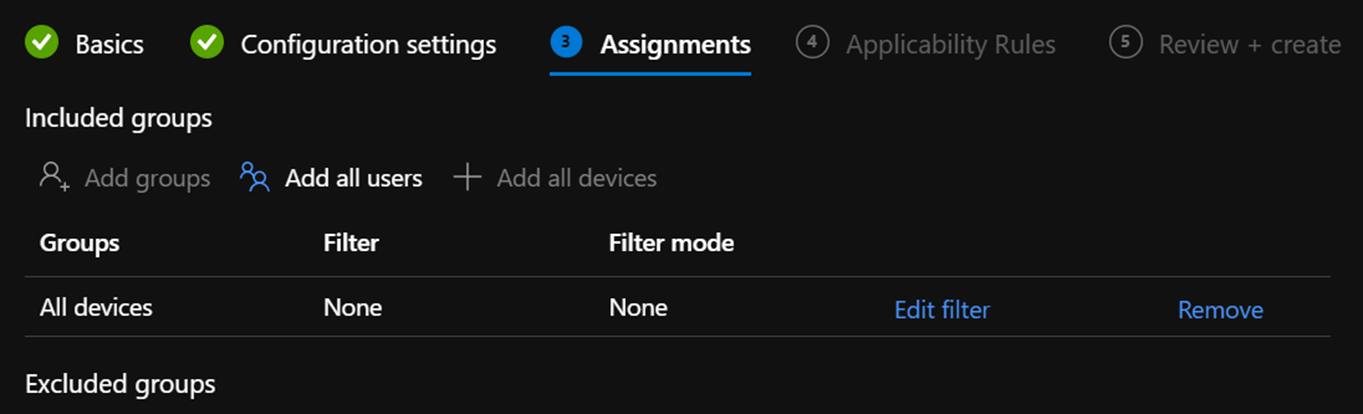
- Click Next, Next and on Review + create tab click Create.
FEEDBACK: Please file feedback in Feedback Hub (WIN + F) under Security and Privacy > BitLocker and Device Encryption.
Changes and Improvements
[General]
- As some Insiders noticed, along with our updated Print Queue experience, we have also made an update so that win32 apps which use CPrintDialog to display the print dialog will now show our modern print dialog. In addition, the modern print dialog discovers local network printers automatically. If you choose a new printer, it will be installed without you needing to go into Settings. Please file feedback about your printing experiences under Devices and Drivers > Print in the Feedback Hub.
- We are reverting the Open With dialog box redesign that began rolling out with Build 22567 to the previous design. We plan to bring this back in the future after addressing some performance issues identified by Windows Insiders. Thank you for your feedback!
- To ensure users are still able to quickly access the console if Windows Terminal has been uninstalled, we are updating the WIN + X menu to point to Windows PowerShell. If you have Windows Terminal installed and would like Windows PowerShell to open in Windows Terminal, we recommend going to Settings > Privacy & Security > For Developers, and setting Windows Terminal as your default terminal app.
- Magnifier and the on-screen keyboard now have new Fluent-style icons.
[Start menu]
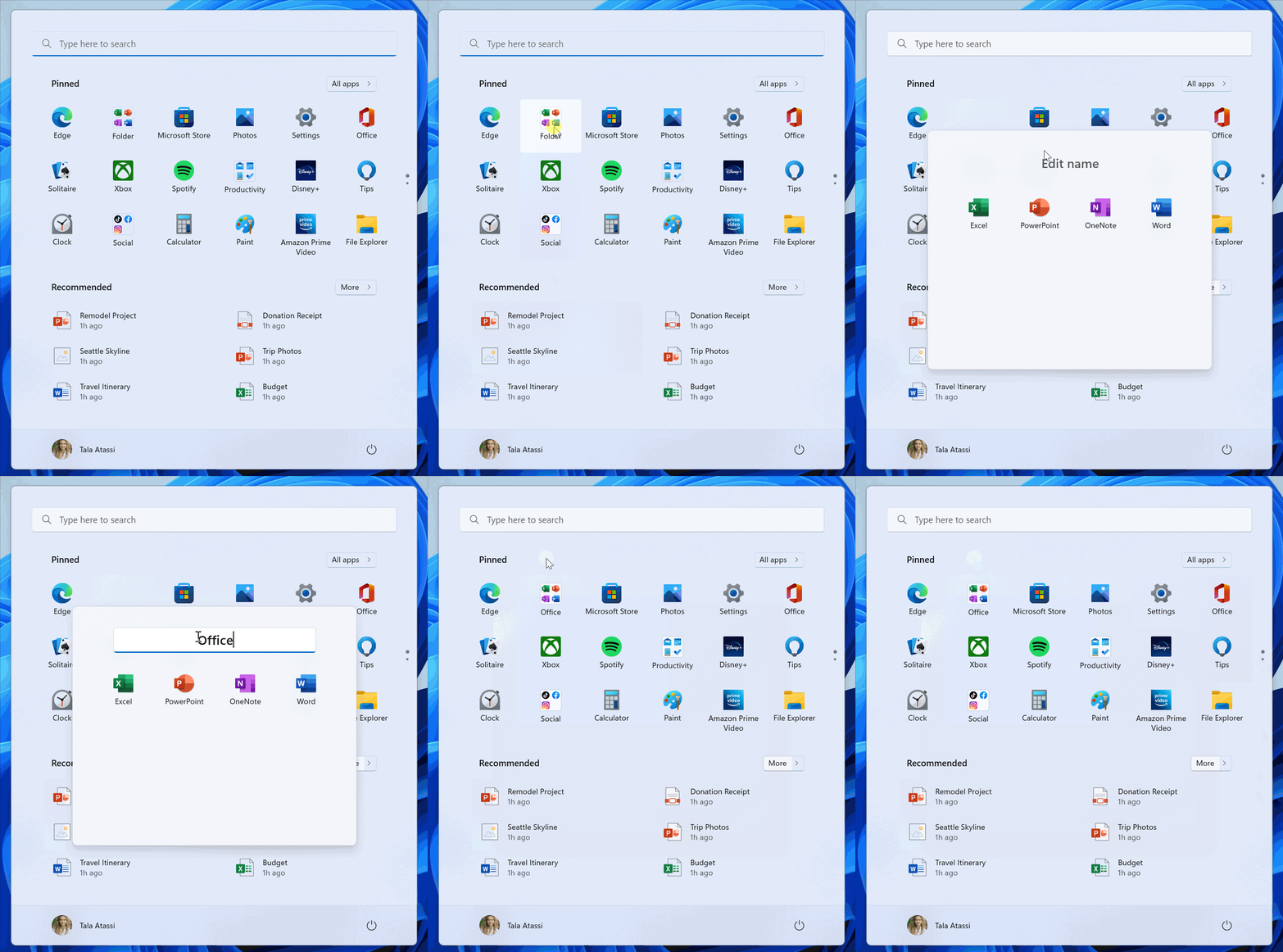
- You can now name your folders of apps in Start. To name a folder, simply create a folder (which will have the default name of “Folder”), open it, click on “Edit name”, and type your folder name. Alternatively, use keyboard focus to open the folder then select the text box and start typing.
[Get Started app]
- We have added pinned site suggestions to the Get Started app so you can conveniently pin websites to your taskbar. To find this new feature, launch the Get Started app and navigate to the “Apps and sites we think you’ll love” page. Click on any of the sites suggested on the page to pin it to your taskbar so you can access the sites you care about in one-click. Please file feedback in the Feedback Hub (WIN + F) under Apps > Get Started.
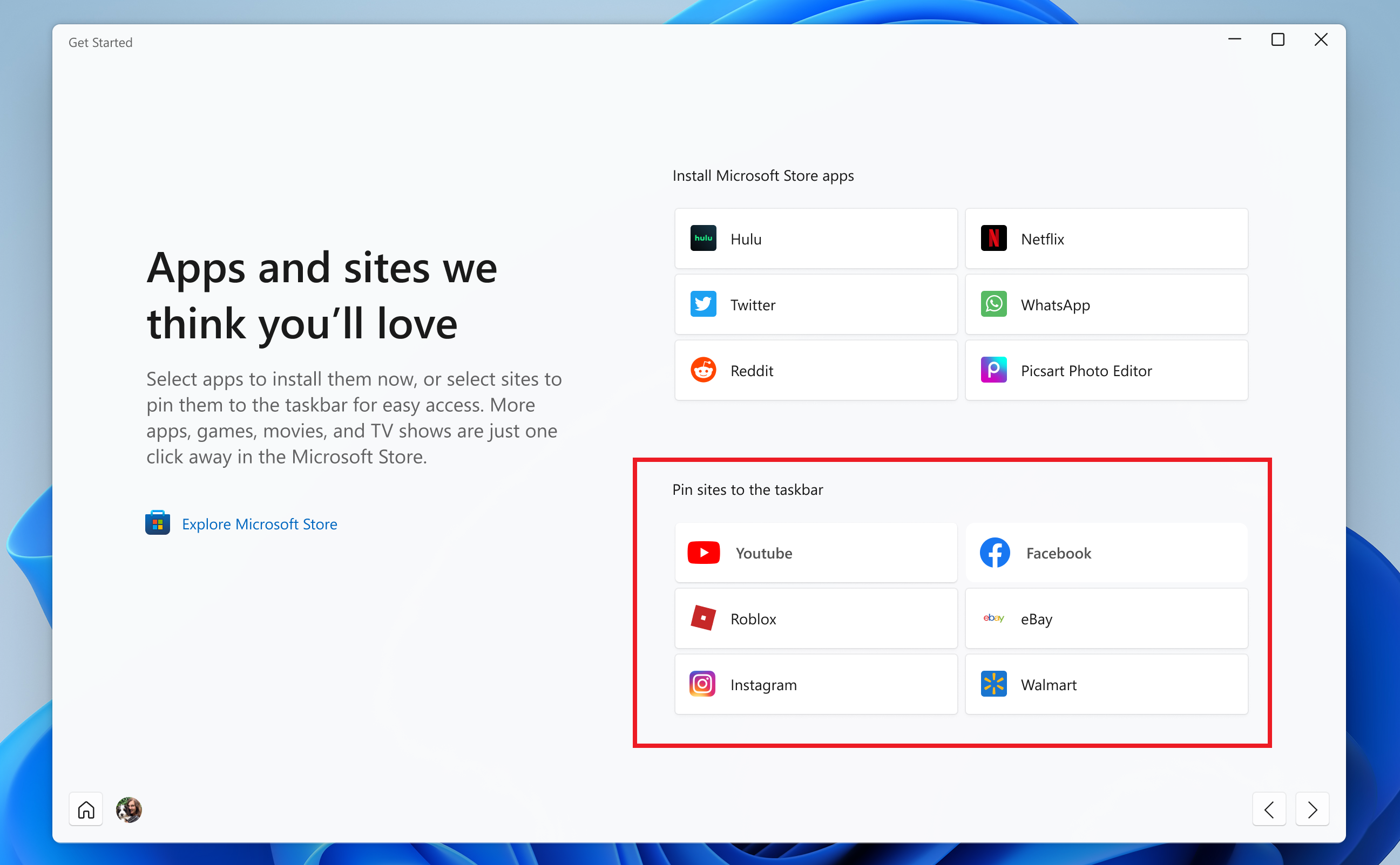
Note: This experience recommends popular sites and is currently only available to EN-US devices. Personalized site recommendations and other locales will be supported soon.
[Windowing]
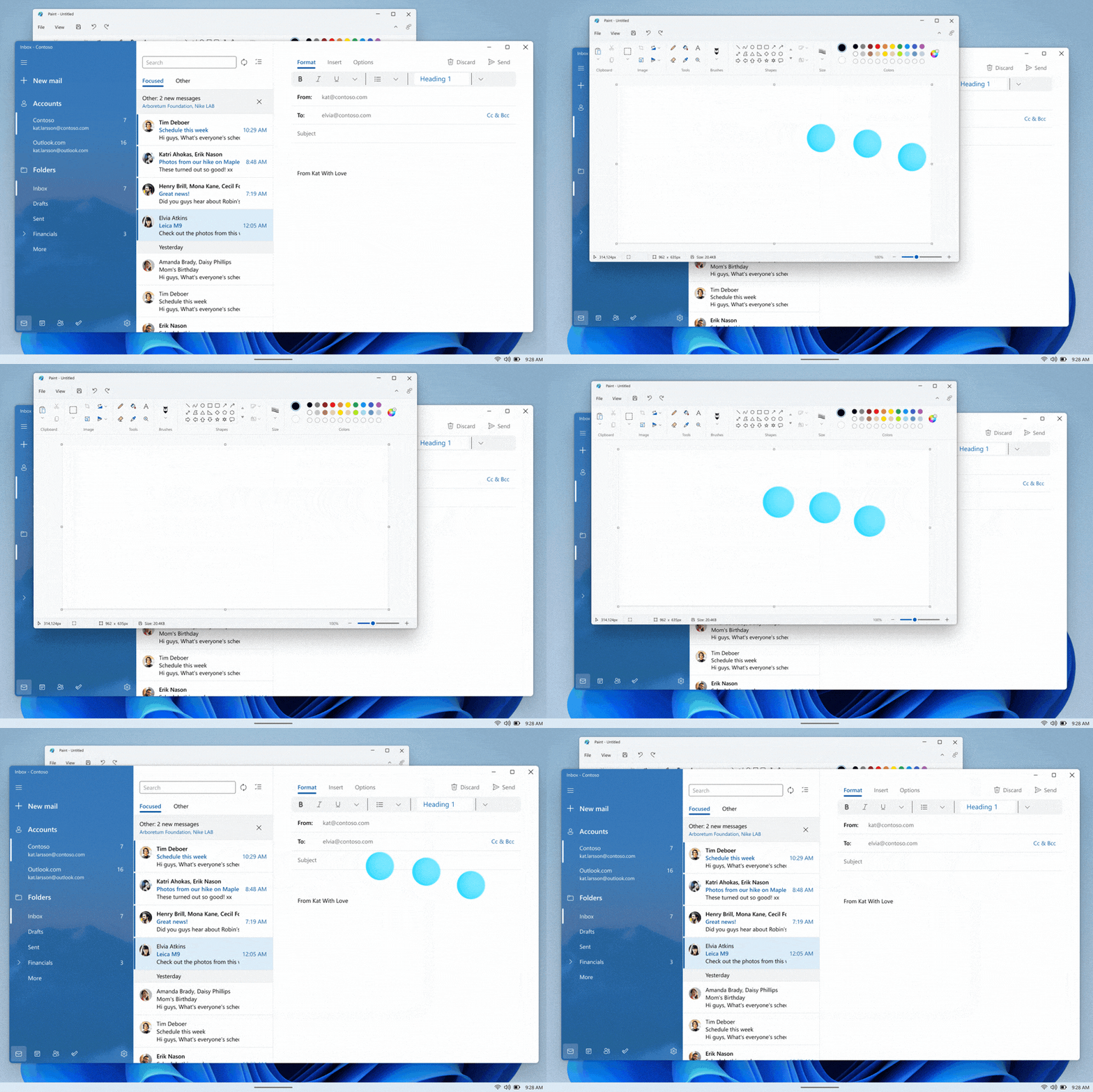
- Continuing our effort to update multi-finger touch gestures to include responsive and delightful animations that follow your finger, try out using three fingers to swipe left and right and switch between recently used windows.
[Task Manager]
- Based on feedback, the Run New Task button is now available on all pages of Task Manager.
- Updated the icon for Run New Task.
[Input]
- To help improve discoverability, emoji that can be personalized (such as the family emoji) now display a small accent colored dot in the bottom corner of their entries in the emoji panel.
- Removed the Keyboard Layout section from Quick Settings.
Fixes
[General]
- Addressed an issue which was causing Gaming Services to not work in the previous flight, leading to issues launching and installing some games.
- Fixed a few high hitting explorer.exe crashes impacting recent flights during general usage of Windows.
- Fixed a bug for Windows Insiders trying to upgrade directly from Windows 10 to recent Windows 11 Dev Channel builds.
[Tablet-optimized taskbar]
NOTE: These fixes will only show if tablet-optimized taskbar is enabled on your device, which is beginning to roll out to Windows Insiders and not yet available for everyone.
- It’s no longer necessary to swipe twice from the tablet-optimized taskbar to show Start or Quick Settings – once the taskbar is fully expanded, these will display with a continued swipe upwards.
- Addressed an issue where using the swipe gesture to invoke the Start menu might bring it up on the wrong screen if an external monitor was connected.
- Notifications will no longer overlap with the tablet-optimized taskbar.
- Fixed an issue where if you invoked Task View the Desktops area might not render completely.
- Middle clicking an app icon to launch a new instance of that app should work again now.
[Start menu]
- Fixed an issue where Start’s folders were still showing animations even if you had animation effects disabled.
- Mitigated an issue that was causing Start’s pinned and folders layouts to get reset to default after explorer.exe restarts.
- Addressed an underlying issue leading to a transparent line along the side of the Start menu when changing your display’s scale.
[Focus]
- You’ll now see the same breaks in focus sessions over 30 minutes started from the Notification Center as you would in sessions started from the Clock app.
- If Do not disturb is turned on prior to starting a focus session, stopping the focus session will no longer turn off Do not disturb.
- If you turn on a focus session, it will not be reset if you have to log out or reboot now.
- Fixed an issue causing your keyboard focus to unexpectedly move to the top of Notification Center when ending a focus session below the calendar.
- Fixed an issue that was preventing you from adding apps to the Settings > System > Notifications > Set priority notifications
[Input]
- Fixed an issue where the enraged face emoji wasn’t searchable in Turkish using the word angry (kızgın). Please continue giving feedback about the emoji search results under Input and Language > Emoji Panel in the Feedback Hub!
- Addressed an issue where the Japanese IME was unexpectedly switching to Katakana mode when focus was set to the UAC dialog.
- Mitigated an issue recently where if you removed a third party IME from that language in Settings > Time & Language > Language & Region and didn’t uninstall it, it might still show in the input switcher.
- Fixed an issue which was causing the mouse to be invisible in fields of certain apps, as well as some unexpected cursor related app crashes in recent flights.
- Addressed an issue where the gesture for bringing in the Notification Center from the side of the screen wasn’t working for the Arabic or Hebrew display languages.
[Settings]
- Fixed an issue for the header at the top of Network & Internet, where the chevron was backwards for Arabic and Hebrew display languages.
[Windowing]
- If transparency is off under Settings > Personalization > Colors, the background of ALT + Tab will no longer be transparent.
- If you drag a window to the top of the screen and then drag it back down, the dismiss animation for snap layouts will display more consistently now.
- Made a small adjustment to fix an animation glitch when invoking snap layouts at the top of the screen.
- Fixed an explorer.exe crash which was happening when dragging certain windows across snap layouts at the top of the screen.
- Mitigated an issue which was causing Task View to appear unresponsive if you invoked Task View while snap assist was showing on screen.
- Did some work to address an issue where ALT + Tab might get stuck open if you invoked it via a very quick gesture on your touchpad.
- Fixed an explorer.exe crash that could happen when an app goes in and out of full screen mode.
[Network]
- Mitigated an issue leading to cellular connections not working on certain devices in the last few builds.
- Addressed an issue leading to Wi-Fi speed degradation in the previous flight.
[Voice access]
- Fixed an issue that was causing the voice access banner to block the top row of desktop icons or the top of full-screen applications.
[Live captions]
- Live captions will now show across your Desktops.
- The “floating on screen” window position will now correctly show as selected in the settings flyout if the live captions window was forced to float (for example when using a full screen app).
- The maximum height of the live captions window is now capped at 40% of monitor height.
- Live captions will no longer crash upon shrinking a max height live captions window.
- Toggling mono audio will no longer crash live captions.
[Narrator]
- Fixed an issue with how Narrator read out collapsed sections in Settings > Accessibility > Narrator when navigating using Shift + Tab.
[Task Manager]
- Fixed a few high hitting Task Manager crashes.
- Fixed an issue where if focus was inside the Details page and you started typing, focus would stop moving through the processes list after the first letter.
- If you’re using the Performance page in Summary view, the title bar of Task Manager will now be hidden.
[Other]
- The percentage on the volume flyout that shows when using your hardware keys will now be centered in the design consistently.
- Improved how keyboard focus and navigation works when moving through and closing the accessibility options on the Lock screen.
NOTE: Some fixes noted here in Insider Preview builds from the active development branch may make their way into the servicing updates for the released version of Windows 11 that became generally available on October 5th, 2021.
Known issues
[Tablet-optimized taskbar]
- The taskbar doesn’t always automatically collapse after launching an app or tapping outside of the expanded taskbar on 2-in-1 devices.
- Some areas of the OS are not yet tracking the height of the expanded taskbar on 2-in-1 devices so you may see overlapping components, such as Widgets overlapping with the taskbar.
[File Explorer]
- Opening suggested results shown while entering search terms in File Explorer’s search box may not work.
- We’re working fixing issues regarding icon sizing, visual bugs, and text clipping in the flyout showing OneDrive storage.
[Widgets]
- Sometimes when pinning from the Feed, the pinned widget is placed at the top instead of below other pinned widgets. If this happens this will autocorrect within 30 minutes, moving the recently pinned widget to the expected default location. Or you can sign out of your Widgets board and immediately signing back in should correct the problem.
- After rearranging widgets in the widgets board, some users experience problems with widgets in the pinned section rendering incorrectly. If this happens, signing out of your widgets board and immediately signing back in should correct the problem.
[Focus]
- The Clock app does not yet update Windows Focus state when configuring focus sessions within the app. This will be addressed in a future app update.
[Narrator]
- Natural voices are breaking up sporadically in the latest build. Restart Narrator to resolve the issue.
[Live captions]
- Certain apps in full screen (e.g., video players) prevent live captions from being visible.
- Certain apps positioned near the top of the screen and closed before live captions is run will re-launch behind the live captions window positioned at top. Use the system menu (ALT + Spacebar) while the app has focus to move the app’s window further down.
- The very top of maximized apps (e.g., title bar window management buttons) can’t be reached with touch while live captions is positioned at the top.
[Task Manager]
- Some tooltips do not accurately display the preferred visual setting when Task Manager is configured for dark mode.
For developers
You can download the latest Windows Insider SDK at aka.ms/windowsinsidersdk.
SDK NuGet packages are now also flighting at NuGet Gallery | WindowsSDK which include:
- .NET TFM packages for use in .NET apps as described at ms/windowsinsidersdk
- C++ packages for Win32 headers and libs per architecture
- BuildTools package when you just need tools like MakeAppx.exe, MakePri.exe, and SignTool.exe
These NuGet packages provide more granular access to the SDK and better integrate in CI/CD pipelines.
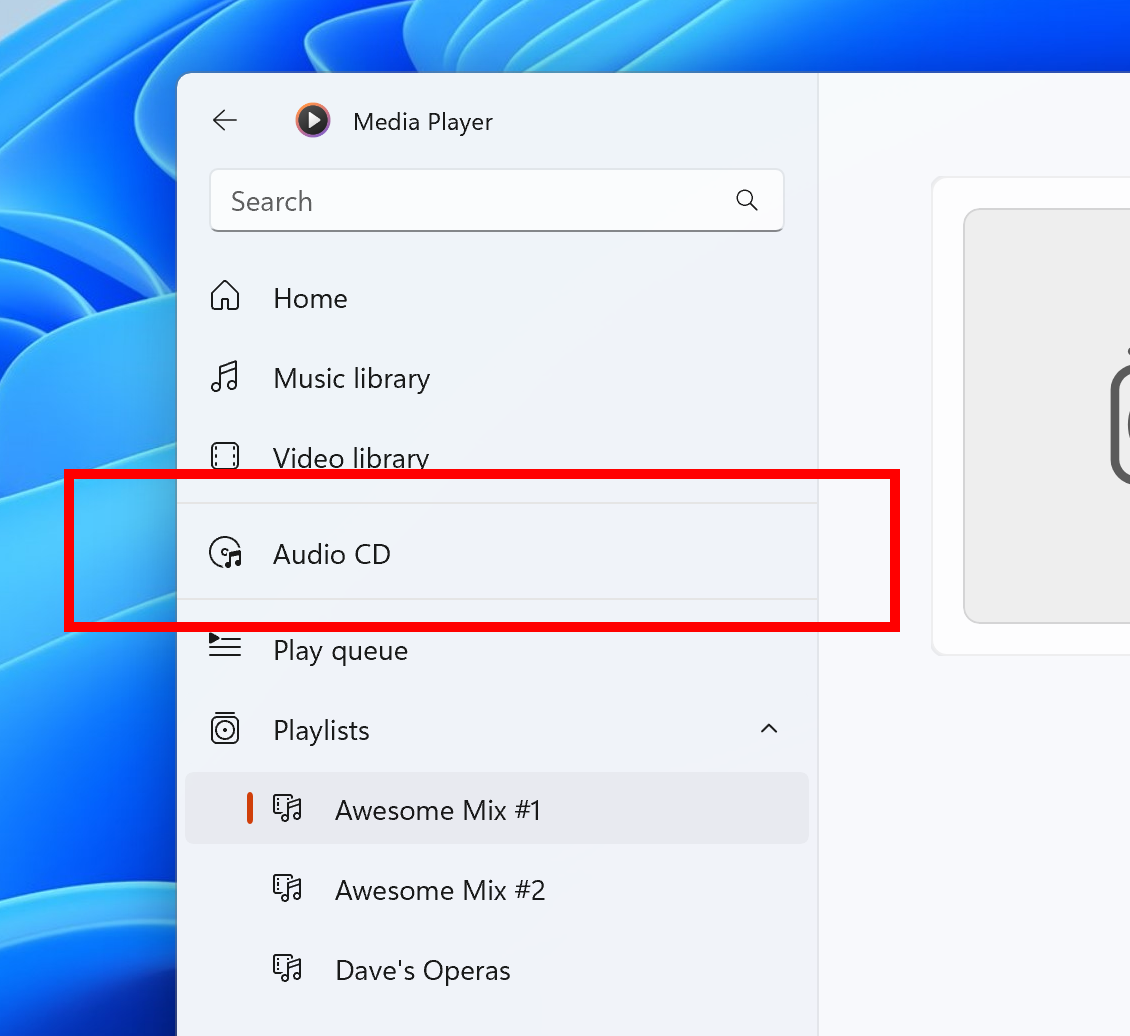
Media Player: CD playback
We have rolled out an update for Media Player (Version 11.2202.42.0) that brings support for CD playback. We’ve also made improvements to better adapt to theme changes and to the media content drag and drop experience.
Your Phone app – Recent Apps Feature: continuity with your office documents
We recently announced the Recent Apps feature which allows you to easily access the three most recently used apps from your Android device on your PC. Now, we are excited to introduce the latest integration of Your Phone and Office mobile expanding the Office productivity with your Samsung device.
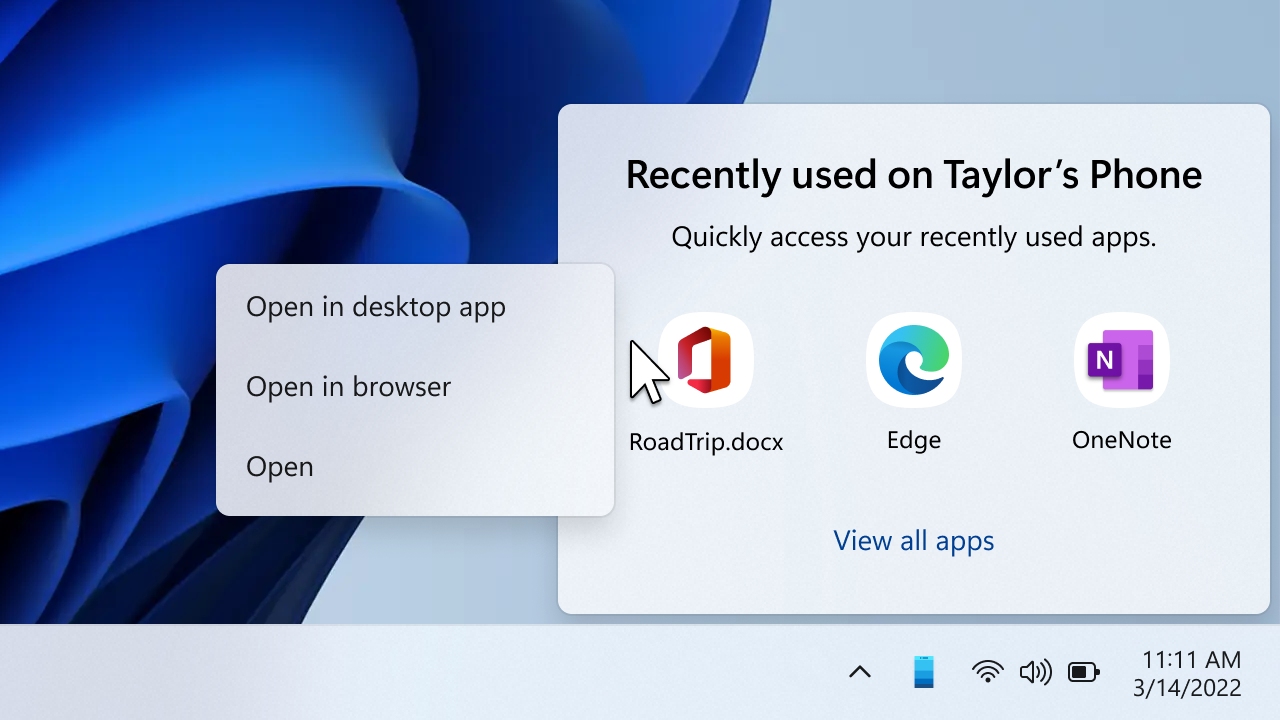
You were able to access your Office documents on the go with the Office mobile app, but now with Your Phone’s deeper integration with Office, when you get back to your PC, you can open the supported documents in the Office desktop app or browser and pick up right where you left off on your phone. Simply click on the document icon from your Recent Apps flyout from Your Phone icon in the system tray on the taskbar or from within the Apps page in Your Phone app and continue working without missing a beat.
The feature is gradually rolling out to Windows Insiders on select Samsung devices (details below). Try out the feature and let us know what you think!
FEEDBACK: Please file feedback in Feedback Hub (WIN + F) under Apps > Your Phone.
Recent Apps – Office continuity requirements:
To use this feature, you will need:
- Your Phone app version 1.22022.60.0 or higher. Older versions will not show recent apps even if you have a supported device.
- Office mobile app version 16.0.14931.20106 or higher.
- A supported Android device. Recent Apps requires a deeper level of integration with the Android device and the team worked directly with Samsung to light this up. It is available on select Samsung devices that have Link to Windows, with OneUI 3.1.1 or higher and Link to Windows Service 2.3 or higher, such as:
- Samsung Galaxy Z Fold
- Samsung Galaxy Z Flip
- Samsung Galaxy S series
- Samsung Galaxy Note series
- Your Android device and PC need to be connected to the same Wi-Fi network for apps to launch on your PC.
Supported Office Documents:
Word, Excel, PowerPoint documents saved in OneDrive
About the Dev Channel [Updated!]
The Dev Channel receives builds that represent long lead work from our engineers with features and experiences that may never get released as we try out different concepts and get feedback. It is important to remember that the builds we release to the Dev Channel should not be seen as matched to any specific release of Windows and the features included may change over time, be removed, or replaced in Insider builds or may never be released beyond Windows Insiders to general customers. For more information, please read this blog post about how we plan to use the Dev Channel to incubate new ideas, work on long lead items, and control the states of individual features.
These aren’t always stable builds, and sometimes you will see issues that block key activities or require workarounds. It is important to make sure you read the known issues listed in our blog posts as we document many of these issues with each flight.
Build numbers are higher in the Dev Channel than the Windows 11 preview builds in the Beta and Release Preview Channels. You will not be able to switch from the Dev Channel to the Beta or Release Preview Channels without doing a clean install back to the released version of Windows 11 currently.
The desktop watermark you see at the lower right corner of your desktop is normal for these pre-release builds.
Important Insider Links
- Want to learn how we made Windows 11? Check out our Inside Windows 11 website to hear and meet our makers from Engineering, Design and Research to share their insights and unique perspectives throughout this journey.
- You can check out our Windows Insider Program documentation here.
- Check out Flight Hub for a complete look at what build is in which Insider channel.
Thanks,
Amanda & Brandon
Source: Announcing Windows 11 Insider Preview Build 22579