No Image

Go Universal! Now your ad campaigns can reach users across Microsoft premium surfaces like MSN, Outlook and Skype

2017-02-01 KENNETH 0

Go Universal! Now your ad campaigns can reach users across Microsoft premium surfaces like MSN, Outlook and Skype Here’s your New Year’s gift from Windows Store team. The “Promote Your App” ad campaigns that delivered ad creatives in other apps in the Windows eco-system just got a major update. We are happy to announce the launch of universal campaigns that will deliver your ads across Microsoft premium surfaces such as MSN.com, Outlook.com, and Skype, as well as games like the Microsoft solitaire collection. Why should I use universal campaigns? The first and the most important reason is wider reach. Microsoft premium surfaces such as MSN, Outlook, Skype and Solitaire collection are used by millions of users daily, and now your ad campaigns have a chance to showcase your awesome app when they interact on these surfaces. Second, your ad campaigns [ more… ]

No Image

Introducing WebRTC 1.0 and interoperable real-time communications in Microsoft Edge

2017-02-01 KENNETH 0

Introducing WebRTC 1.0 and interoperable real-time communications in Microsoft Edge We’re excited to announce the preview availability of the WebRTC 1.0 API, and support for the H.264/AVC and VP8 video codecs for RTC in Microsoft Edge, enabling plugin-free, interoperable video communications solutions across browsers and platforms. These features are enabled by default in Windows Insider Preview builds starting with last week’s release, 15019, and will be in stable releases beginning with the Windows 10 Creator’s Update. Background and Object RTC Microsoft Edge introduced support for ORTC beginning in EdgeHTML 13 (Windows 10 version 1511), providing the initial foundation for real-time communications in Edge. Our priority with the WebRTC 1.0 API support is to provide interoperability with legacy implementations on existing websites, which leverage the WebRTC API as previously deployed in other browsers. Our WebRTC 1.0 API implementation provides support for [ more… ]

Microsoft Edge helps you organize your web

2017-02-01 KENNETH 0

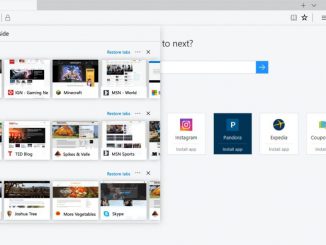
Microsoft Edge helps you organize your web The introduction of Microsoft Edge for Windows 10 was an important step towards delivering a browser that not only gives users better performance, battery life, and security, but also a browser that keeps up with the ever-changing demands of digital living. Today, we’re excited to dive deeper into the features and improvements you’ll see within Microsoft Edge in the Windows 10 Creators Update, as well as provide a peek into how and why they came to be. Keeping your web organized As you may have seen earlier this month, we’ve released a set of tab management features to the Windows Insider Program that we designed specifically to address major points of anxiety for users – the chaos and clutter of the web and the fear of losing tabs. Our research tells us that [ more… ]

Monetize your game app with Playtem ads

2017-01-31 KENNETH 0

Monetize your game app with Playtem ads Here’s something any would-be game developer who wants to find a good monetization strategy needs to know. The psychology of gaming is weird. I have a friend who hates to pay for games. Her favorite kind of games are the freemium ones that make their money off of in-app purchases. Basically, you can play the whole game without ever paying a dime, but you can advance much more quickly if you are willing to spend money for better in-app gear or extra lives. My friend makes a special point of persevering past really difficult boss levels with low-end gear or putting in extra hours to gain experience points when she could have bought an experience multiplier for just a few dollars. In her mind, she’s beating not only the game itself but also, [ more… ]

Windows 10 Tip: Stay in sync with OneDrive

2017-01-31 KENNETH 0

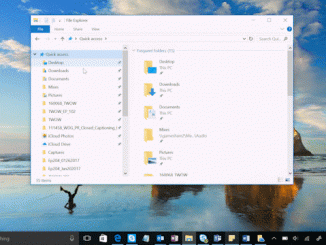
Windows 10 Tip: Stay in sync with OneDrive Did you know you can get to your files and photos from anywhere, on any device, while keeping them all in sync?  You can with Microsoft OneDrive – a free cloud storage solution – preinstalled for you on Windows 10. Here’s how to get started with OneDrive: To put documents or photos in your OneDrive, simply open File Explorer, select OneDrive, and drag your files into your OneDrive folder. You can now access those files online at OneDrive.com or on your mobile device. OneDrive keeps all your files in sync across your devices. OneDrive saves a copy of your file to the cloud and to your PC. But if you’re running low on space, you can choose what files to sync to your PC. Simply open the OneDrive folder in File Explorer, [ more… ]